

5 Tips To Make Your Windows 11 System Runs Efficiently & Smoothly
April 18, 2024
What is Antivirus & Why It Important
October 11, 2024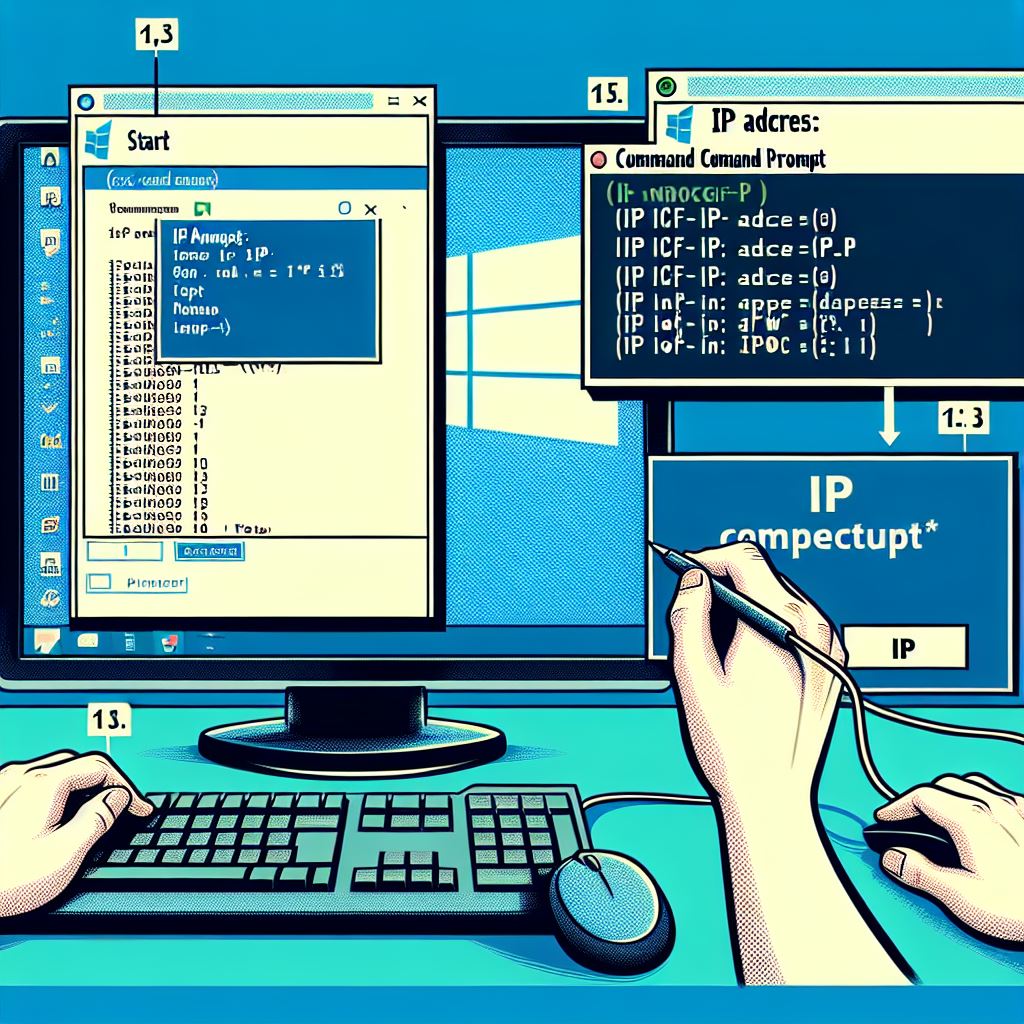
Step-by-step tutorial on how to check your IP address in Windows, complete with illustrations.
How to Check Your IP Address in Windows
Method 1: Using the Command Prompt
- Open Command Prompt:
- Press
Windows + Rto open the Run dialog box. - Type
cmdand pressEnter.
!Open Command Prompt
- Press
- Type the Command:
- In the Command Prompt window, type
ipconfigand pressEnter.
!Type ipconfig
- In the Command Prompt window, type
- Find Your IP Address:
- Look for the line that says
IPv4 Address. This is your IP address.
!Find IP Address
- Look for the line that says
Method 2: Using Network Settings
- Open Settings:
- Click on the
Startmenu and selectSettings.
!Open Settings
- Click on the
- Go to Network & Internet:
- In the Settings window, click on
Network & Internet.
!Network & Internet
- In the Settings window, click on
- Select Your Network:
- If you are connected via Wi-Fi, click on
Wi-Fiand then your network name. - If you are connected via Ethernet, click on
Ethernet.
!Select Network
- If you are connected via Wi-Fi, click on
- Find Your IP Address:
- Scroll down to the
Propertiessection. Your IP address will be listed next toIPv4 address.
!Find IP Address in Settings
- Scroll down to the
These methods should help you easily find your IP address on a Windows computer. If you have any questions or need further assistance, feel free to ask!